Help / Fix a problem
Fix a problem
Find the message you see, open it, and follow the steps. When a video fails, its reason is written under it on the Clips page.
Nothing matches. Try one word, or send a report.
Where to look first
- Open the Clips page. A video that failed stays in the list with the word Failed and the reason under it.
- Read the reason, then find it below. Most are fixed in a minute.
- Press Retry on the video once the cause is fixed. Dismiss takes it off the list.

The Activity tab lists what Clipsumo did and when, which helps to see where something stopped.
Installing and starting
Windows says "Windows protected your PC"
Windows shows this for programs it has not seen many times yet.
- In the blue box press More info.
- Press Run anyway.
Windows blocks Clipsumo with Smart App Control
Smart App Control stops programs Windows does not know. The message can also mention an "Application Control policy".
- Open Windows Security.
- Open App & browser control, then Smart App Control settings.
- Switch it Off.
- Start Clipsumo again.
The Mac says Clipsumo cannot be opened
macOS asks you to confirm programs from outside the App Store.
- Open System Settings, then Privacy & Security.
- Scroll down and press Open Anyway next to Clipsumo.
- Open Clipsumo again and confirm.
The first start does not finish
The first start downloads about 1 GB. A dropped connection, a firewall or a full disk stops it.
- Check that the internet works in your browser.
- Make sure about 10 GB of disk space is free.
- If a firewall or VPN is on, switch it off for a moment.
- Start Clipsumo again. It carries on from where it stopped.
I closed the window. Is it still running?
With background mode on, closing the window leaves Clipsumo working.
- On Windows, look for the Clipsumo icon near the clock. Click it to open the window again, or choose Quit.
- On a Mac, open Clipsumo again from Applications. The window comes back.
- To change this, open Settings, Background and messages.
Getting the video
YouTube asks to confirm you are not a bot
YouTube sometimes refuses downloads until it sees a signed-in browser.
- Wait a few minutes and press Retry on the video.
- Try a different video to see if only that one is affected.
- Open Settings, Autopilot, and at "Browser for YouTube sign-in" choose the browser you use for YouTube. Clipsumo then uses your sign-in.
- Press Retry.
"YouTube changed something"
Video sites change how they work. Clipsumo updates its downloader when it starts.
- Close Clipsumo completely and start it again.
- Press Retry on the video.
- If it repeats, check Settings, Licence and updates for a new version.
- Still failing: send a report.
"The video is private, deleted or not available in your country"
Clipsumo can only download videos that anyone can watch.
- Open the link in your browser, signed out. If it does not play there, it cannot be clipped.
- Use another video, or a file you already have: drop the file onto the Clips page.
"That link points at a live stream or a channel"
- Wait until the stream has ended and its recording is published.
- Open the recording and copy its own link, not the channel's.
- Paste that link. To follow a whole channel, add it on the Autopilot tab instead.
"This video is for subscribers only"
- Use a video that is public.
- If it is your own video, drop the file itself onto the Clips page.
"The internet connection dropped"
- Check that a website opens in your browser.
- Press Retry on the video. The download carries on from what is already there. A video that was downloaded in full is not fetched again.
The AI
A bar says the AI on this computer is not running
The local AI (a program called Ollama) is closed. Videos wait until it runs. Nothing is lost.
- Press Start the AI on that bar.
- If it does not start, open the Ollama app from your Start menu or Applications.
- Or press AI settings on the bar and use an online AI service with your own key.

The first video takes very long
Clipsumo downloads two things once: the listening model (75 MB to 1.5 GB) and the AI model (2 to 9 GB).
- Watch the card at the top left. It shows the download and its progress.
- Let it finish. The next videos start straight away.
"The speech model could not be downloaded"
The listening model comes from huggingface.co. A VPN or firewall can block that address.
- Check your internet connection.
- Switch off the VPN, or allow huggingface.co in the firewall.
- Press Retry.
"The computer ran out of memory"
The AI model or the listening model is too large for this computer, or the graphics card is doing two jobs at once.
- Close other heavy programs, then press Retry. What was already heard is kept.
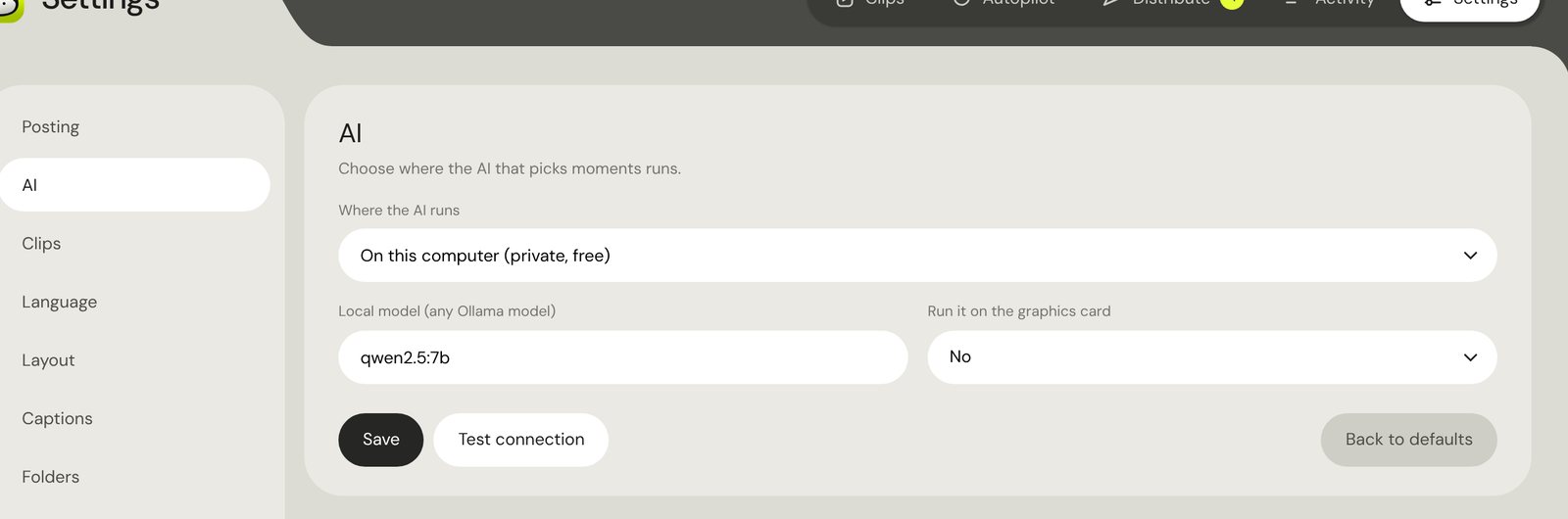
- If it happens again while choosing moments: open Settings, AI, and pick a smaller model, or set "Run it on the graphics card" to No.
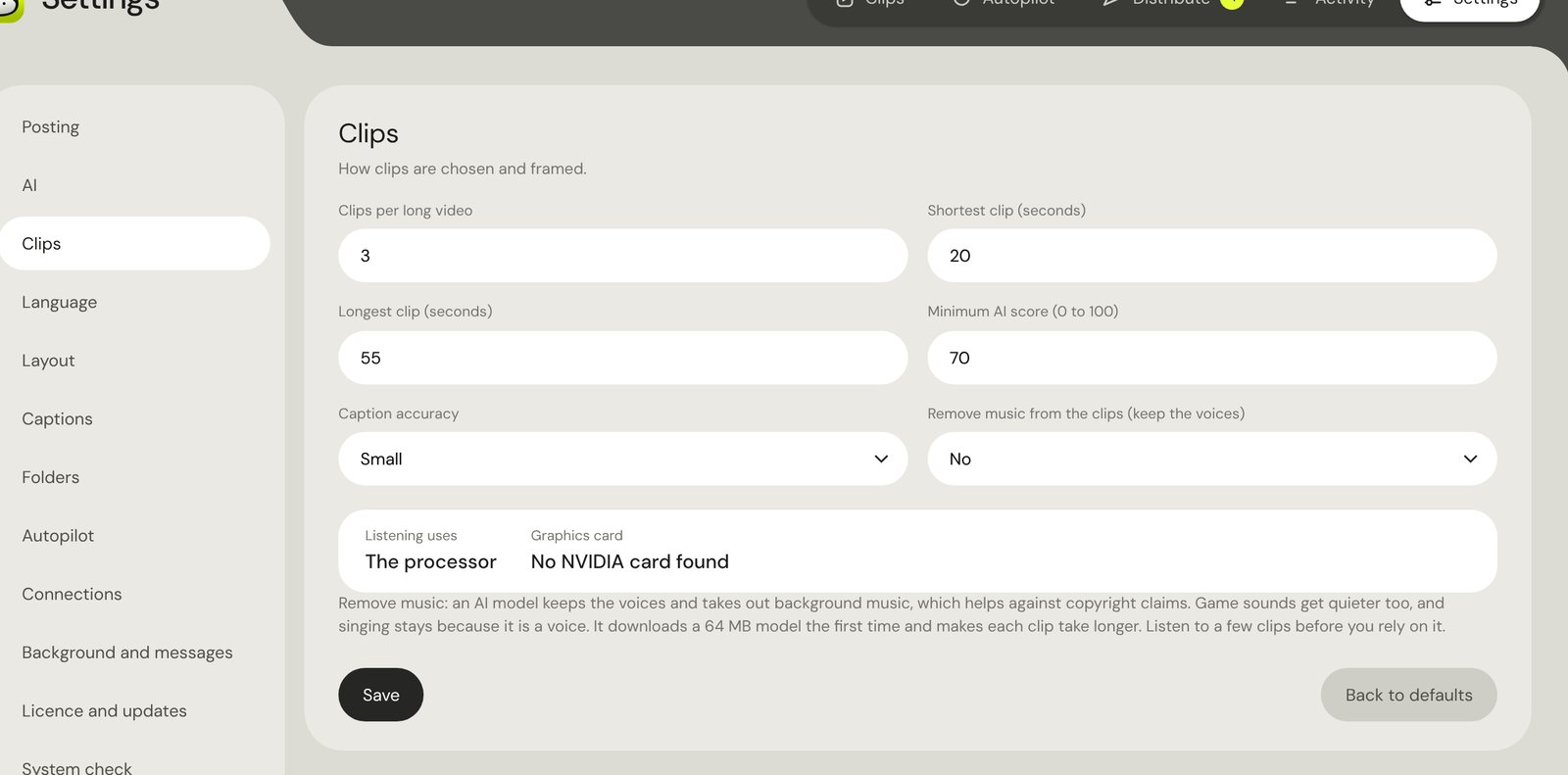
- If it happens again while listening: open Settings, Clips, and set Caption accuracy one step lower.
"The AI did not answer three times in a row"
Clipsumo stops after three silent parts in a row, so it does not wait through the rest of a long video. What was heard is kept, so nothing is listened to twice.
- Open Settings, AI, and press Test connection.
- Local AI: make sure it is running (see the first item in this group).
- Online AI: check the key and the model name. A wrong key or an empty balance gives this message.
- Press Retry on the video.
A video finished with "No clips"
The reason is written under the video. The usual ones:
- No moment scored high enough. Open Settings, Clips, lower the minimum score, and press Try again.
- No speech was heard. The video has no talking to caption. Use another video.
- To get more clips from a video that did give some, raise "Clips per long video" in Settings, Clips, and press More clips.
Clips and captions
A caption has a wrong word
- Click the clip to open it.
- Press Edit clip.
- Click the word and type the right one. Empty a word to remove it.
- Press Make it again.
The captions are in the wrong language
Clipsumo works out the language from the speech. On a long video it uses the first part where people really talk, so music or a waiting screen at the start does not decide it. A video with two languages, or very unclear speech, can still be heard wrong.
- Open Settings, Language, and choose the language at "Language spoken in the videos".
- Delete the clips with the wrong captions.
- Press Try again on the video. The button reads More clips if some of its clips are left. Clipsumo listens to the video again in that language.
- Set it back to "Work it out by itself" afterwards if your other videos are in other languages.
The clip starts too early or ends too late
- Open the clip and press Edit clip.
- Type a new start or end time, or use the one-second buttons.
- Press Make it again.
I changed the caption style but old clips look the same
New settings apply to new clips.
- Open the old clip.
- Press Edit clip, then Make it again. It is cut again in the current look.
"The video engine had a problem"
- Close Clipsumo and start it again.
- Press Retry on the video.
- If it repeats on the same video, send a report.
Remove music is slow, or the first use waits
The first use downloads a 64 MB model. Removing music adds time to every clip.
- Let the first download finish.
- If it is too slow for you, switch Remove music off in Settings.
Speed and disk space
It is slow
Listening to the video and picking the moments are the two slow steps. A graphics card speeds up both. Clipsumo also gives way to the other programs you are using, so it is slower while you use the computer.
- Press Pause.
- Open Settings, Clips, and press Use the graphics card (NVIDIA cards).
- Open Settings, AI, and set "Run it on the graphics card" to Yes, or pick a smaller model.
- No graphics card? Open Settings, Clips, and set Caption accuracy one step lower. Listening is faster, with a few more wrong words.
- Close games and other heavy programs while it works.
"Use the graphics card" did not work
Clipsumo tests the card before using it. If the test fails it says why and stays on the processor.
- Read the reason shown on the Settings, Clips page.
- Press Pause so nothing else is using the card, then try again.
- Update the graphics card's driver from NVIDIA.
- If it still fails, Clipsumo keeps working on the processor.
"This video needs about ... GB of free space"
Long videos are large. Clipsumo checks the size before it downloads, so it does not fail hours later.
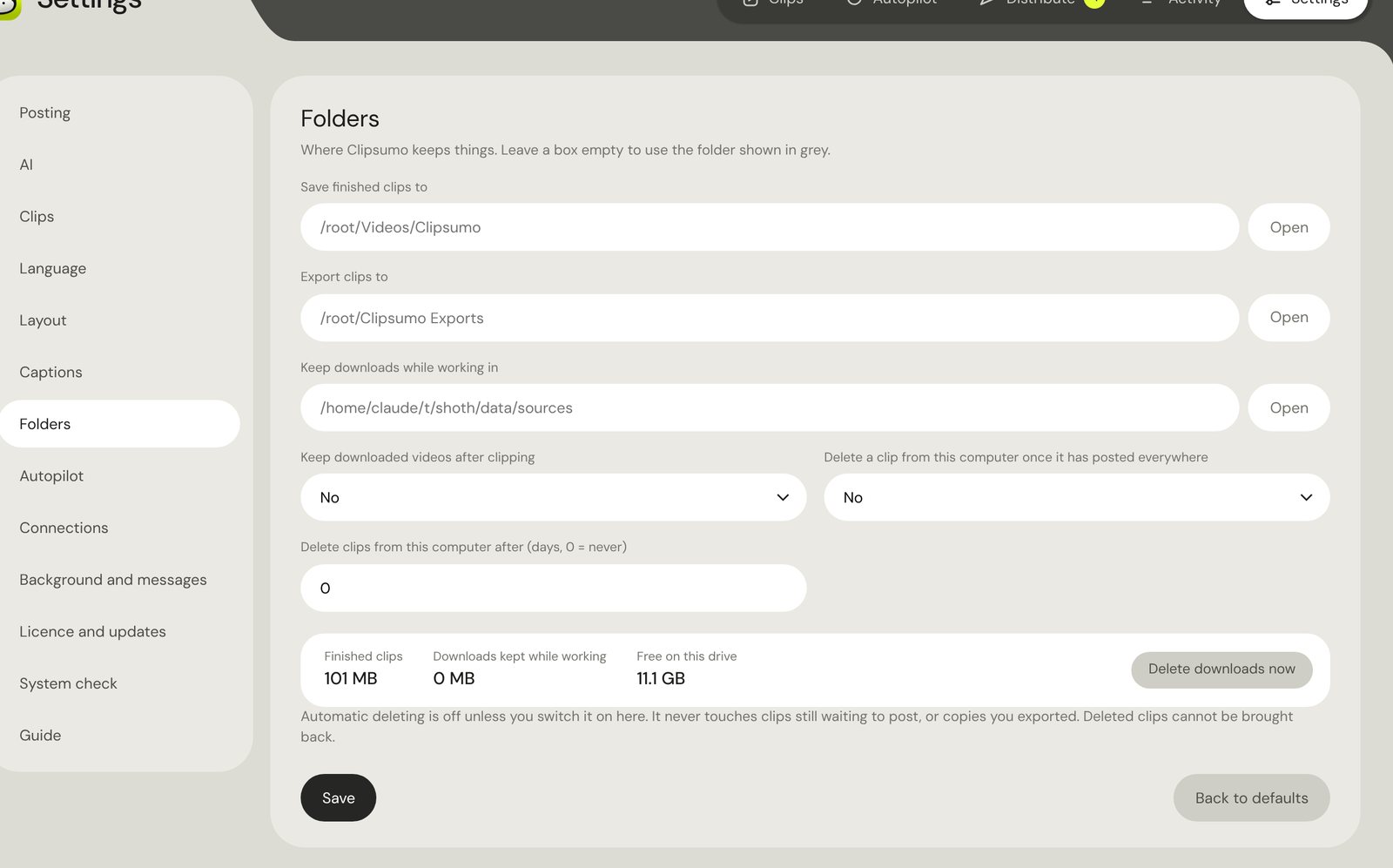
- Free up space on that drive, or open Settings, Folders and choose a folder on a drive with more room.
- Press Retry on the video.
- To keep the drive from filling up, open Settings, Folders and turn off Keep downloaded videos after clipping. Each download is then removed once its clips are made.
Clipsumo closed by itself, or the computer shut down, in the middle of a video
Very little is lost. The video goes back in the queue, a finished download is kept, and a long video is heard in ten-minute steps that are saved as it goes.
- Open Clipsumo again. The video starts by itself and carries on from the last saved step.
- If a Something went wrong box appears, press Send report. The report shows what the program was doing when it closed.
- If the same video closes Clipsumo again at the same point, the video is set aside so the rest of the queue can go on. The next item says what to do then.
"Clipsumo closed unexpectedly twice while ... this video"
The whole app closed twice at the same place in this video. Most often the computer ran out of memory. The video was set aside so the app does not close again every time you open it.
- Close other programs, above all browsers with many tabs and games.
- Press Retry on the video. What was already heard is kept, so it carries on from there.
- If it closes again, open Settings, Clips and set Caption accuracy one step lower, then press Retry.
- Still happening? Open Settings, Guide, Report a problem and send the report. It shows what the program was doing when it closed.
A long video takes hours at "Choosing moments"
The AI reads a long video in parts. On a slow computer each part can take several minutes.
- Leave it running. The card at the top left shows which part it is on.
- To make it faster, open Settings, AI and pick a smaller model, or use the graphics card if you have one.
- If it says the AI did not answer three times in a row, the AI has stopped. Press Start the AI or open Ollama, then press Retry. What was already heard is kept.
The computer went to sleep, or I closed the laptop, during a long video
Clipsumo keeps the computer awake while it works on a video. The screen may still switch off, which is fine. A closed laptop lid or an empty battery still stops the work.
- Keep a laptop plugged in, with its lid open, while a long video is worked on.
- Open Clipsumo again. The video carries on from where it stopped.
"The drive is nearly full" or "The disk is full"
- Open Settings, Folders. It shows how much space clips and downloads use.
- Press Delete downloads now to remove downloaded videos that are no longer needed.
- Or choose a folder on another drive: on the Clips page, next to Save clips to, press Change.
- Press Retry on the video.
Autopilot
A channel shows a red message
Clipsumo could not check that channel. The red text says why.
- Check the channel's name or link for a typing mistake. Remove it and add it again with the link copied from your browser.
- Press Check channels now.
- If the message mentions a sign-in check, follow YouTube asks to confirm you are not a bot.
Autopilot finds no new videos
Work through these in order:
- Is Check my channels by itself on? If it is off, Clipsumo only looks when you press Check channels now.
- Is the channel paused? Each channel has its own Pause button.
- Open Settings, Autopilot. A video longer than "the longest video it will touch" is skipped.
- The same page sets how many videos it takes per check. The rest are taken at the next check.
Videos sit in the "Found" list and are not clipped
Show me what it found before clipping is on, so Clipsumo waits for you.
- Press Clip it on the videos you want, and Skip on the others.
- To have everything clipped straight away, switch Show me what it found before clipping off.
Clips are made but wait instead of being posted
- On the Autopilot tab, switch Post new clips automatically on.
- Then check the list under Clips are not being posted.
Posting
Clips are not being posted
Work through these in order:
- Settings, Posting: is your Upload-Post key filled in?
- Distribute tab: press Check accounts. Does the account say connected?
- Is there a wire from a source to that account? No wire means no posts.
- Is posting paused? The Distribute tab has its own pause.
- Open the account. If it is set to ask first, the clip waits for your OK.
- Check its rules: the lowest score, posts per day and minutes between posts can all hold a clip back.
- TikTok needs a paid Upload-Post plan.
A clip went to only one of my TikTok accounts
When one source feeds several accounts on the same platform, each clip goes to one of them in turn. Posting the identical clip to several accounts can get them limited.
- To change this, use the switch under the Distribute board.
A clip went to the wrong account
- Open the Distribute tab and follow the wires from the clip's source.
- Click a wire to remove it. Drag a new one to the right account.
- For one clip only: open the clip and use the Posting row.
Licence and buying
"That licence key was not recognised"
- Copy the key from your e-mail and paste it. Do not type it.
- Keys look like CLIP-XXXX-XXXX-XXXX-XXXX. After CLIP-, a key never uses the digits 0 or 1 or the letters O or I, so a 0 you see is not part of it.
- Make sure it is a Clipsumo key, from the e-mail titled "Your Clipsumo licence key".
"This key is already in use on 3 computers"
One key works on three computers at a time.
- On a computer you no longer use, open Settings, Licence and updates.
- Press Remove licence from this computer.
- Enter the key on the new computer.
- If the old computer is gone, write to support and we clear it for you.
"Could not reach the licence server"
- Check that a website opens in your browser.
- Switch off a VPN or firewall for a moment and try again.
- If you already activated, Clipsumo keeps working for 7 days without a connection.
"The answer did not come from the Clipsumo licence server"
Something between Clipsumo and the internet changed the answer. A VPN, a proxy or a security program can do this.
- Switch off the VPN or proxy.
- In your security program, switch off "HTTPS scanning" or "web shield" for a moment.
- Try the key again.
"Too many tries. Wait an hour and try again"
The licence server stops checking keys from a connection that sent many wrong ones.
- Wait an hour.
- Copy the key from your e-mail and paste it, so it is entered correctly the first time.
"Trial finished"
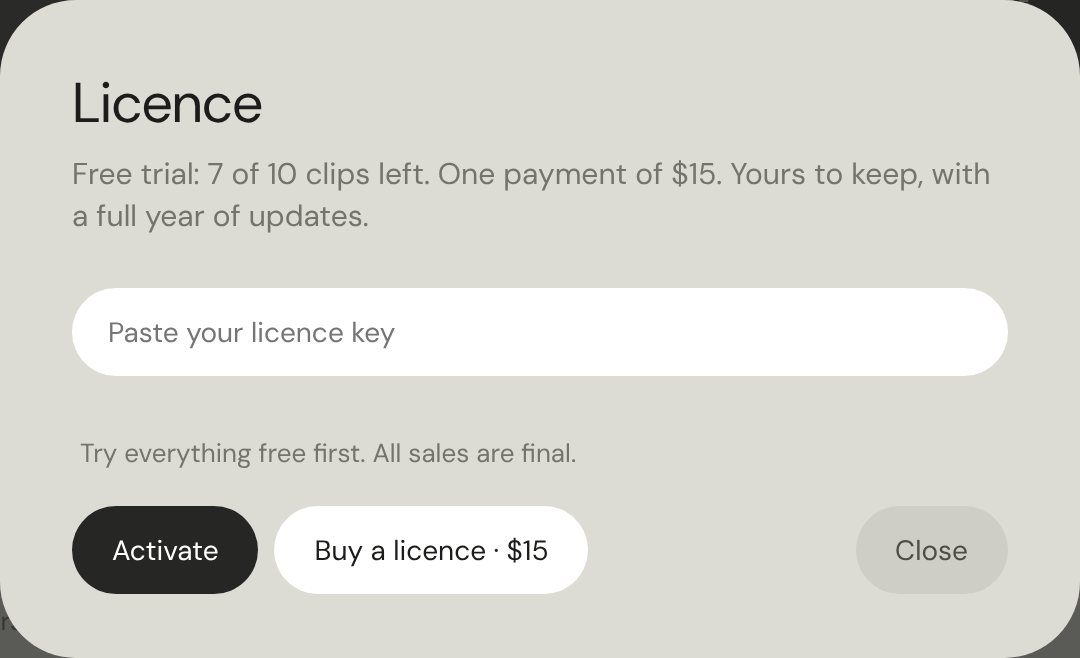
The free trial makes 10 clips. Your clips, settings and channels are kept.
- Buy a licence on the Buy page.
- In Clipsumo open Settings, Licence and updates, press Enter licence key and paste the key.
- Videos that were waiting carry on by themselves.
"This purchase was refunded" or "This licence key has been switched off"
- If you did not ask for a refund, write to support with the e-mail address you bought with.
Clipsumo went back to the trial
This happens when the computer was offline for more than 7 days, or the licence was removed from it.
- Connect to the internet.
- Open Settings, Licence and updates, and enter your key again.
The card form on the Buy page does not open, or the payment fails
The payment is taken by our reseller's card form, which opens on the Buy page.
- Switch off ad blockers and privacy extensions for the page, then reload it.
- Try another browser, or a private window.
- If the card is refused, try another card. Some banks block payments abroad until you confirm them in the bank's app.
- If money left your account but the page shows no key, see the next item.
I paid but have no key
- Check the spam folder for an e-mail titled "Your Clipsumo licence key".
- Go to the download page and use Lost your key? with the e-mail address you paid with.
- Still nothing after an hour: write to support with that e-mail address and the order reference from the Buy page.
Still stuck? Send a report
A report shows us exactly what went wrong on your computer. It takes two clicks.
- When something really fails, a Something went wrong box appears by itself. Or open it any time: Settings, Guide, Report a problem.
- Write one line about what you were doing. This helps more than anything else.
- Press Send report. If your mail program opens instead, paste the report into the message (it is already copied) and send it.
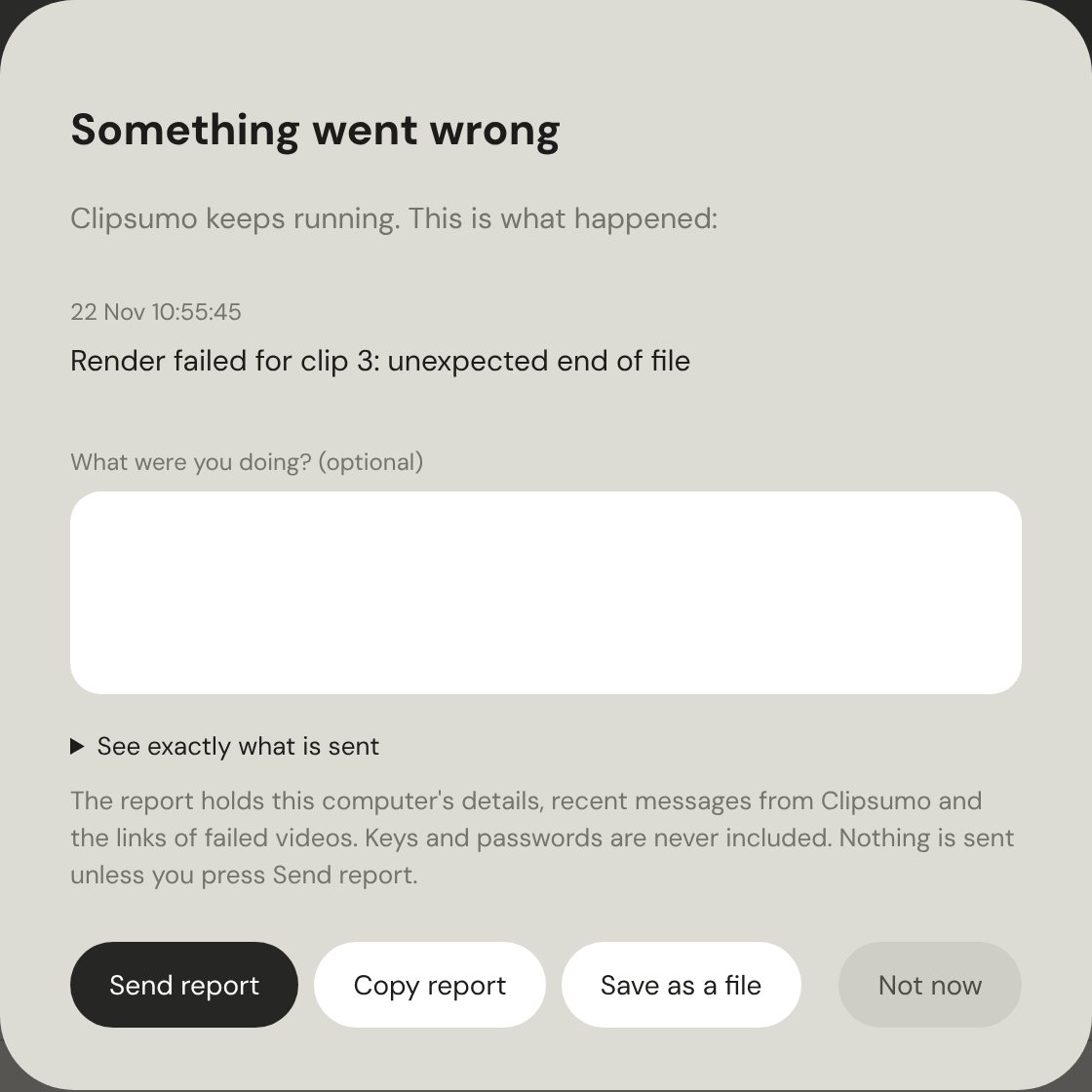
- See exactly what is sent shows the whole report before you send it.
- The report holds details of your computer, recent messages from Clipsumo and the links of failed videos. If Clipsumo closed by itself, it also holds a note of what the program was doing at that moment.
- Keys and passwords are never included, and nothing is sent unless you press Send.
- Copy report and Save as a file let you send it yourself to support.